
ATS in 2026: What Actually Gets Parsed (and What Breaks)
A 2026 guide to ATS parsing: what systems reliably read, what formatting breaks, and a quick parse-test checklist to protect keywords and dates.
1) ATS parsing in 2026: it’s better, but still literal
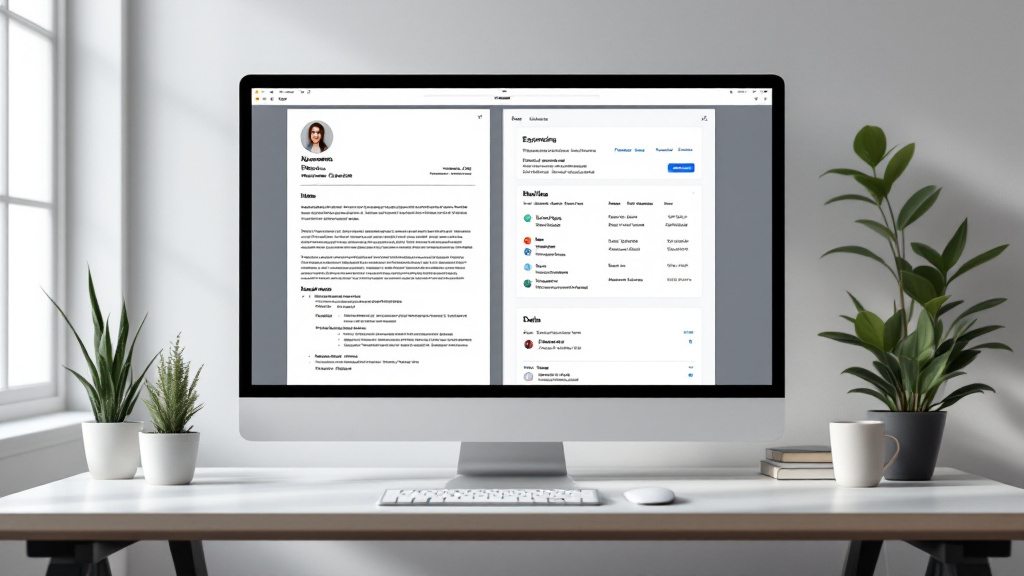
Applicant Tracking Systems (ATS) in 2026 are more capable than the keyword-scanners people feared a decade ago—but they’re still highly literal. Most modern platforms (think Workday, Greenhouse, iCIMS, Lever) extract text, then map it into fields like Work Experience, Education, Skills, and Dates. If your résumé’s structure is unclear, the parser may misfile content or quietly drop it—hurting ranking and recruiter review even when your experience is strong.
The biggest misconception in job-search and career-advice circles is that “AI will figure it out.” Some systems do use ML to infer sections, but they still rely on clean cues: standard headings, consistent date formats, and readable text layers. In hrtech, the common failure mode is not “bad writing,” it’s “unreadable layout.” That’s why resume-formatting matters as much as keywords: if “SQL” lives inside a text box, or a job title is embedded in a header, it may never reach the searchable index.
When in doubt, optimize for what gets parsed: plain, labeled sections and a single, linear reading order that an ATS can reliably reconstruct.
2) What breaks parsing: columns, tables, PDFs, and mislabeled sections
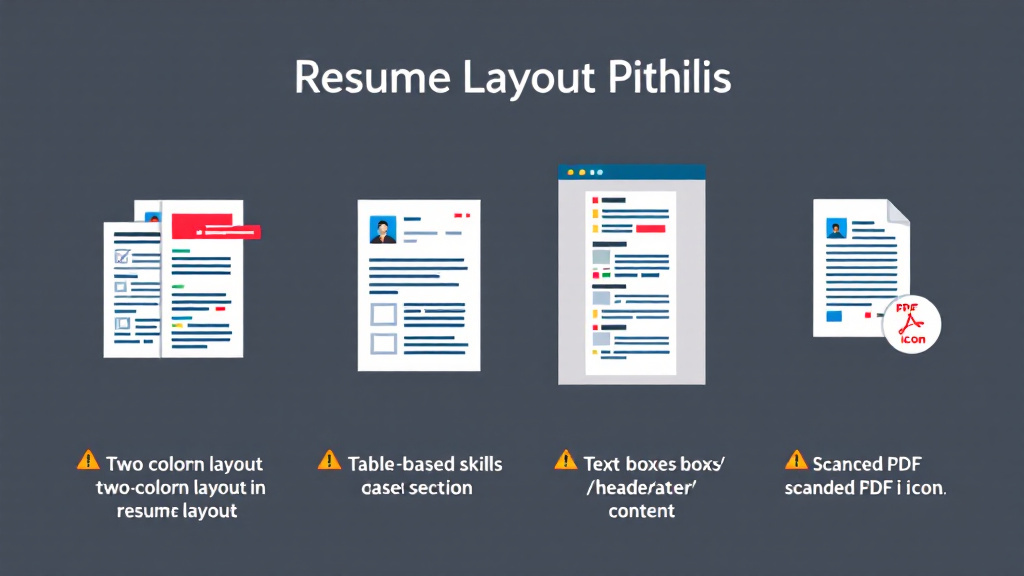
In 2026, the fastest way to confuse an ATS is still a complex layout. Two-column designs, tables, and text boxes often change the reading order: the parser may read your right column first, merge unrelated lines, or treat key content as decorative. A common silent failure: dates placed in a narrow right column (e.g., “2022–2024”) get separated from the role, so your timeline looks blank. Another: a table-based skills grid where “Experimentation | Funnels | SQL” becomes one long, unsearchable string.
File type also matters. A well-generated DOCX usually parses most consistently because headings, paragraph breaks, and lists are explicit. PDFs are a mixed bag: “digital” PDFs with a real text layer can parse fine, but scanned PDFs or design-heavy exports can flatten into fragments. Plain text is the safest for extraction but strips formatting cues—so your section labeling must be crystal clear.
Section names are not a place to get creative. Prefer standard labels like Professional Experience, Education, Skills, Projects. Headings such as “Where I’ve Been” or “My Toolkit” can cause misclassification, especially in high-volume job-search workflows.
3) A practical 2026 “parse test” checklist (with patterns to avoid)

If you want ATS-safe resume-formatting, run a “parse test” before applying at volume. The goal is simple: ensure your keywords, dates, and titles land in the right fields after import. This is especially important if you’re a career switcher, new grad, or non-native English professional—small parsing errors can mask relevant experience and undermine otherwise strong career-advice best practices.
Start with quick diagnostics: upload your résumé to a few application portals and review the auto-filled form. If the system misplaces employers, deletes bullets, or drops dates, fix the document—not the form. Watch for patterns that silently fail: date ranges using unusual characters (e.g., “2021 — 2023” with an em dash), month/year tucked into headers or footers, role titles styled as images, and “Skills” hidden inside a table.
Parse test checklist (2026): - Use a single-column layout; avoid tables and text boxes - Keep headings standard: Experience, Education, Skills, Projects - Put job title, company, location, and dates on separate, readable lines - Export both DOCX and PDF; confirm both parse cleanly - Include critical keywords (ATS, SQL, experimentation) in body text, not graphics - Do a plain-text copy/paste test: does it read in the right order?
In hrtech, tools like TailorProof Careers add value by drafting role-specific content while keeping exports ATS-safe—and by prompting you to verify claims so accuracy survives both parsing and scrutiny.